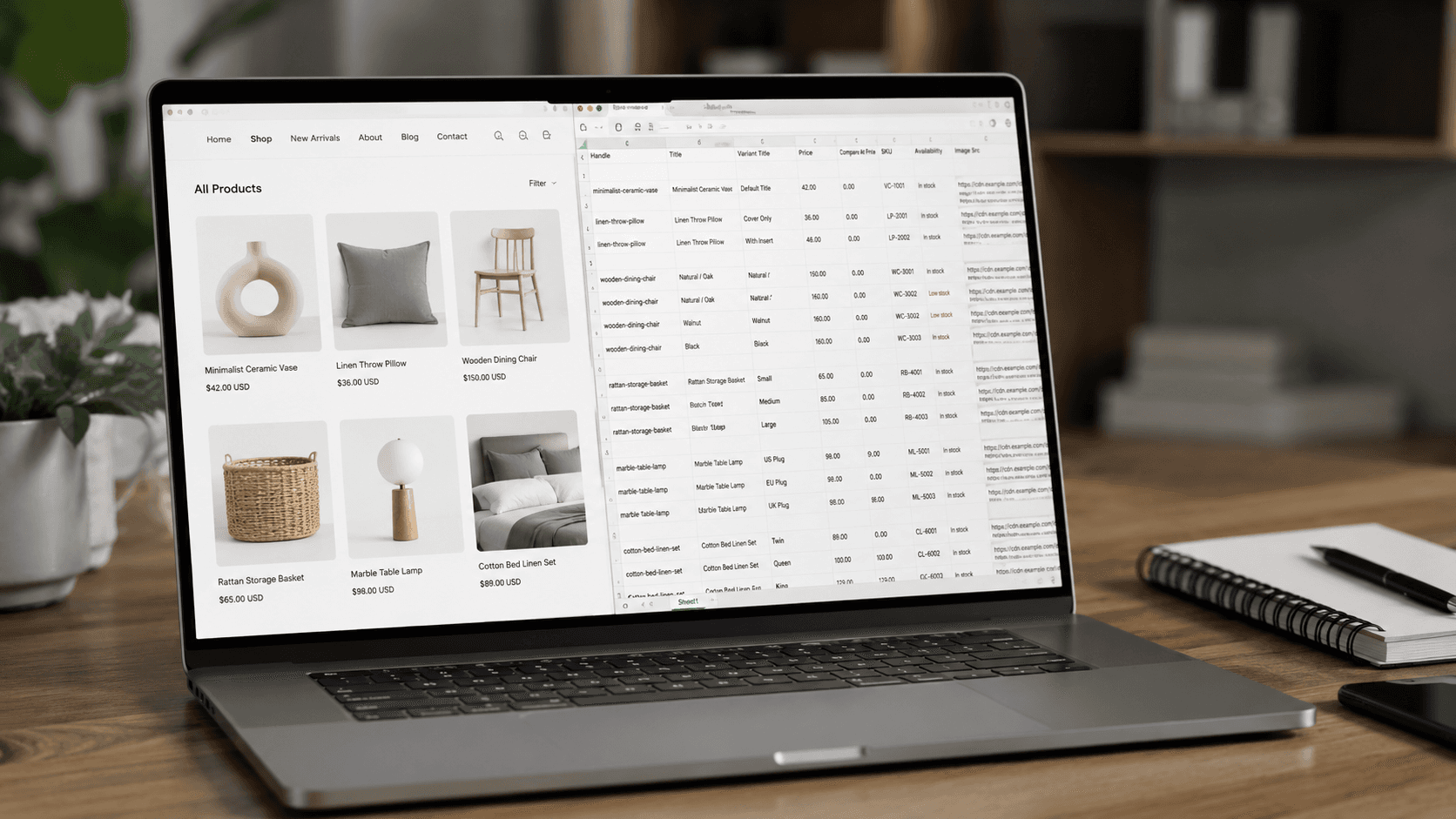

Your new supplier has 3,000 products on their website. Every one of them has a full description, a specification table, six photos, and variants in four sizes. What they sent you is a PDF price list with SKUs and wholesale prices.
This is where most dropshipping stores lose their first month. Someone has to copy titles, save images, rebuild variants, and type prices into a spreadsheet. By the time the catalog is live, half the prices have changed.
Most advice on dropshipping automation assumes your supplier sits on AliExpress or inside an app marketplace, where a one-click importer does the job. This guide is for the other case: the wholesaler, distributor, or niche brand that publishes everything online but gives you no app, no API, and no usable feed. It covers how dropshipping product import works in that situation, how to get a supplier's catalog into Shopify or WooCommerce as a clean file, and how to keep prices and stock current after launch.
One thing up front, because it saves confusion later: this guide automates the catalog side of the business. Order routing and fulfillment are a separate layer, covered briefly at the end.
What Dropshipping Automation Actually Covers
"Automate your dropshipping store" usually means four different jobs, and no single tool does all of them well.
Product import. Getting the supplier's products into your store with titles, descriptions, variants, images, prices, and identifiers.
Price and stock sync. Keeping your store in line with the supplier after launch, so you don't sell items that are out of stock or priced below cost.
Order routing. Passing a customer's order to the supplier automatically.
Fulfillment tracking. Pulling tracking numbers back into your store and notifying the customer.
Most dropshipping automation tools are built around layers 3 and 4, with import bundled in for the suppliers they integrate with. That works until you add a supplier they don't support. From then on, layers 1 and 2 become manual work again.
So if you're asking how to automate dropshipping with independent suppliers, start with the first two layers. They consume the most hours, and they are where catalog errors come from: wrong prices, missing variants, and products that no longer exist. Good dropshipping inventory management depends on an accurate catalog, and an accurate catalog depends on how it got into your store.
Why Product Import Breaks When Your Supplier Has No App
Many of the best dropshipping suppliers are not marketplaces. They are regional wholesalers, EU and US distributors, and manufacturers who dropship for a small number of retailers. They often offer faster shipping, better margins, and less competition than marketplace products.
Their data situation usually looks like this:
The complete supplier catalog is on their website, with descriptions, specs, images, and categories.
What they send you is a price list in PDF or Excel with SKU, name, and wholesale price. Sometimes stock levels come separately by email.
There is no product feed, or the "feed" is a spreadsheet with no images and no variant structure.
A dropship catalog in this form cannot be imported. It has to be rebuilt first, and manual rebuilding fails in predictable ways. Variants get flattened into one product. Images end up in the wrong order or attached to the wrong color. Specifications land in one block of description text instead of filterable fields. And since nobody records which supplier page each product came from, there is no way to update the product later without redoing the work.
The information you need already exists on a public web page. It just isn't in a format your store can read.
4 Ways to Import a Supplier Catalog
Method | Works for | Variants and images | Ongoing updates | Main limitation |
|---|---|---|---|---|
Manual entry | Up to a few dozen products | Error-prone | Manual, every time | Doesn't scale past a small range |
Supplier's own CSV or feed | Suppliers who provide one | Depends on the feed | Only if the supplier resends | Many suppliers don't offer a usable feed |
Importer apps | Supported marketplaces and platforms | Usually good | Built in for supported sources | Only works with sources the app integrates |
Extracting data from the supplier's site | Any supplier with a public catalog | One row per variant, full gallery | Scheduled re-runs | Needs a clean output schema and a unique key per product |
Manual entry is fine for testing ten products and nothing beyond that.
The supplier's own file is the best option when it exists and is complete. Always ask for it first. Usually, though, it contains prices but not content.
Importer apps are what most people mean by a product importer. A Shopify product importer or Shopify store importer app can pull from supported marketplaces in a few clicks. Bulk tools like Matrixify (a common search is matrixify shopify) are excellent at loading and updating large spreadsheets, but they import files. They don't create the file from a supplier's website.
Extracting data from the supplier's website fills that gap. An ecommerce product scraper reads the supplier's category and product pages and returns structured fields: title, price, variants, stock, images, and specifications. A generic product scraper stops at a raw dataset. For import, the output must be shaped into the exact columns your platform expects. That is the job of catalog import: turning a supplier website into a file you upload, not a dataset you still have to clean.
In practice, most stores combine methods: prices and stock from the supplier's price list, content and images from the supplier's website, merged on SKU.
ShopScraping is built for exactly this gap between "the catalog exists online" and "the catalog is ready to import."
What an Import-Ready Dropshipping Catalog Must Contain
A file that imports once is easy to make. A file you can import, update, and import again for months needs a few specific fields.
A stable unique key. Use a stable supplier identifier for matching, and map it to a stable store identifier: Shopify Handle for products and SKU for WooCommerce products or variations. Keep variant SKUs unique. The key is what lets a future import update existing products instead of creating duplicates. A catalog without one can be loaded once and never maintained.
One row per variant. A T-shirt in five sizes and three colors is fifteen rows, each with its own SKU, price, and stock status, linked to one parent product. This is the most common thing that goes wrong in hand-built catalogs.
Supplier cost and selling price as separate columns. Keep the wholesale price in its own field and calculate your retail price from it with a markup rule. When the supplier changes a price, you recalculate instead of re-entering it by hand.
Stock status or quantity. Even a simple in-stock/out-of-stock flag is enough to prevent most overselling.
The full image gallery in the original order, with the main image first and each variant image attached to the right variant.
Identifiers. GTIN/EAN/UPC and MPN, where the supplier publishes them. You need them for Google Shopping and marketplaces, and for matching the same product across suppliers.
Category path and attributes as separate fields: material, dimensions, and compatibility, not buried in the description.
For a Shopify CSV import, a single variant row looks roughly like this:
Handle | Title | Option1 Name | Option1 Value | Variant SKU | Variant Price | Variant Compare At Price | Variant Inventory Qty | Image Src |
|---|---|---|---|---|---|---|---|---|
canvas-tote-bag | Canvas Tote Bag | Color | Natural | SUP-4471-NAT | 34.00 | 39.00 | 18 | https://…/tote-natural-1.jpg |
If you're looking for a sample product JSON to import into Shopify through the API or an import app, the same record looks like this. The exact schema depends on the tool you use. For example:
json
The format matters less than the structure behind it. If the fields above are present and consistent, the file can be shaped for any importer. Our product data extraction guide explains how those fields are pulled from product pages in the first place.
Step by Step: Automating Dropshipping Product Import
The workflow is the same whichever platform you run.
1. Pick the entry point. Choose the supplier's category page, brand page, or a list of product URLs. You don't need to list every product. A crawler follows pagination and discovers the rest.
2. Choose the fields. Start with the list in the previous section. Add anything your niche needs as a filter, such as size charts, voltage, or compatibility.
3. Define pricing rules before you import. Decide on the markup (a percentage, a fixed amount, or tiers by cost), rounding (for example, to .99), and how the compare-at price is set. Apply the rules in the spreadsheet or in the import tool, not by hand.
4. Get a sample first. Import 20–50 products into a draft or unpublished state. Check variants, image order, and prices in the storefront before loading thousands.
5. Import the full catalog. Once the sample looks right, load everything.
6. Schedule the refresh. Decide how often prices and stock need updating. This is covered in detail below.
Importing into Shopify
Shopify's built-in product importer reads CSV files in its own template. The template is strict about column names, but it handles large files well. Any Shopify import CSV products tutorial 2026 will tell you the same essentials:
Products are grouped by Handle. Every variant row of one product shares the same handle, and the first row holds the product-level fields: title, description, vendor, and type.
Options go in Option1/2/3 Name and Value columns. Shopify supports up to three options per product.
Images go in Image Src with Image Position. A variant image goes in Variant Image.
To update existing products instead of creating new ones, tick "Overwrite products with matching handles" when importing. This is why a stable handle derived from the supplier SKU matters.
Import new products as draft until you've reviewed them.
That's the whole answer to how to import products to Shopify from a supplier website: extract, shape the file to Shopify's template, and upload. The same CSV works for a bulk upload of products to Shopify, but large catalogs may need to be split into multiple files because Shopify imposes a file-size limit. For a ready-made file in Shopify's layout, see Shopify catalog import.
Importing into WooCommerce
Dropshipping with WooCommerce gives you more flexibility and a slightly more complex import format. The core WooCommerce product import tool (Products → Import) reads CSV, and the key points are these:
Simple products are one row each. Variable products need a parent row (type
variable) and one row per variation (typevariation), linked through the Parent column.Attributes use paired columns: Attribute 1 name, Attribute 1 value(s), plus visibility and global flags. The parent lists all values; each variation row holds its own single value.
Images take a comma-separated list of URLs. The first URL becomes the featured image.
Tick "Update existing products" to match rows by ID or SKU.
If you import products to WooCommerce from a supplier running WooCommerce themselves, the extraction step is easier than it looks. We cover it in detail in our guide on how to scrape WooCommerce products. For WooCommerce import products CSV files already in the parent–variation layout, see WooCommerce catalog import.
Keeping Prices and Stock in Sync After the First Import
The first import is the easy part. The real dropshipping inventory management problem starts a week later, when the supplier changes 40 prices, discontinues 12 products, and restocks 30.
Set refresh frequency by field, not by catalog. Prices and stock change daily and need daily or near-daily runs. Descriptions, images, and specifications change slowly, so weekly or monthly is enough. Re-importing full content every day just increases the chance of overwriting your own edits.
Update by key, never re-create. Each scheduled run should produce a file keyed on the same SKU or handle, so the import updates existing products. A lightweight "price and stock only" file (SKU, cost, price, quantity) is faster and safer than a full product file.
Handle products that disappear. If a product is missing from the latest run, don't delete it automatically. Set it to out of stock or draft, and review the list weekly. Suppliers often remove a page for a day and put it back.
Watch your margin, not just the price. When the supplier's cost goes up, your markup rule should recalculate the retail price. Flag any product whose margin falls below your threshold. This is the same idea as price scraping for competitive pricing, applied to your own supply side.
This is what inventory sync in Shopify and WooCommerce comes down to for suppliers without an integration: a scheduled file from the supplier's live site, keyed consistently, imported on a schedule. Our guide on how to track product stock and availability goes deeper into stock-level monitoring, stockout duration, and variant-level availability.
Fixing Thin Supplier Data Before You Publish
Supplier websites are the best source you have, but they are rarely perfect. Three problems come up constantly.
The description is the same everywhere. If a supplier dropships for 50 stores, 50 stores publish the same text. Search engines have no reason to rank yours. Use the supplier description as input, keep the facts, and rewrite the copy.
Attributes are buried in titles. "Men's Merino Hiking Sock 3-Pack Grey L" contains material, pack size, color, and size, none of which your filters can use. Extract them into separate fields.
Identifiers are missing. If a product has a GTIN but you don't provide it when Google expects one, the product may have limited visibility or performance. Manufacturer and retailer pages often publish the identifier the supplier leaves out.
Filling these gaps is product data enrichment: adding the missing specifications, attributes, identifiers, and images from external sources. Our guide to ecommerce product data enrichment covers where that data comes from and how to merge it without overwriting good values.
What You Can and Can't Reuse from a Supplier's Site
A short version of the rules, since dropshippers ask about this constantly:
Public product information such as prices, specifications, availability, and identifiers can generally be collected from public pages, but collection and reuse are subject to the applicable laws and the site's terms. Product descriptions and photography may be protected by copyright or contractual restrictions. If you're an authorized reseller, check your supplier agreement to confirm what content you are allowed to reuse.
For the full picture, including court cases and a compliance checklist, see Is Web Scraping Legal?.
Where This Fits in Your Dropshipping Tool Stack
Catalog import doesn't replace your other dropshipping tools. It sits underneath them.
Order and fulfillment apps (the category most people mean by dropshipping automation software) handle routing and tracking for the suppliers they integrate with.
A WooCommerce dropshipping plugin or Shopify app can manage supplier assignment and order emails once products exist in your store.
Bulk import tools load and update files at scale.
Catalog import from supplier websites creates those files for suppliers that no app supports, and refreshes them on a schedule.
A realistic setup for a store with three independent suppliers looks like this: one scheduled product file per supplier, one daily price-and-stock file per supplier, one bulk import tool, and one order workflow. The first two items are the part that used to be manual.
FAQ
Can you fully automate a dropshipping store?
Most of it, yes. Product import, price and stock sync, order routing, and tracking updates can all be automated. What stays with you is the decision layer: which products to carry, your pricing rules, reviewing new products before they go live, and handling supplier exceptions. Stores that try to remove that layer entirely tend to end up with pricing errors and discontinued products still on sale.
How do I import products from a supplier's website into Shopify?
Extract the product data from the supplier's category pages: titles, variants, prices, stock, images, and identifiers. Then shape it into Shopify's product CSV template and upload it through the Shopify admin. Keep a stable handle for every product so that future imports update products instead of duplicating them.
How often should I update prices and stock from my supplier?
Daily for prices and stock in most niches, and more often during sales periods or for fast-moving products. Descriptions and images can refresh weekly or monthly.
Will re-importing the catalog create duplicate products?
Not if every product has a stable key and you use the update option. Shopify matches on handle when you choose to overwrite matching handles. WooCommerce matches on ID or SKU when you choose to update existing products.
Can I import products from a competitor's store?
You can analyze a competitor's assortment, pricing, and category structure. Republishing their content and images in your store is a different matter and generally not permitted. Build your catalog from suppliers you have an agreement with.
What file format does a dropshipping CSV need?
The one your platform's importer expects: Shopify's product CSV template, WooCommerce's parent–variation CSV, or a custom schema for an import app or PIM. The data behind them is the same. Only the column names and row structure differ.
Turn Your Supplier's Website into an Import-Ready Catalog
If your supplier publishes their catalog online but can't give you a usable feed, you don't need to rebuild it by hand. ShopScraping reads the supplier's product pages and delivers a structured file: one row per variant, images and identifiers attached, formatted for Shopify, WooCommerce, or your own schema, as a one-off import or on a daily schedule for prices and stock.
Send us a category URL from your supplier and tell us which platform you're importing into. We'll prepare a sample file from the actual source before you commit to anything. Start your catalog import, or run a demo to see the output first.