
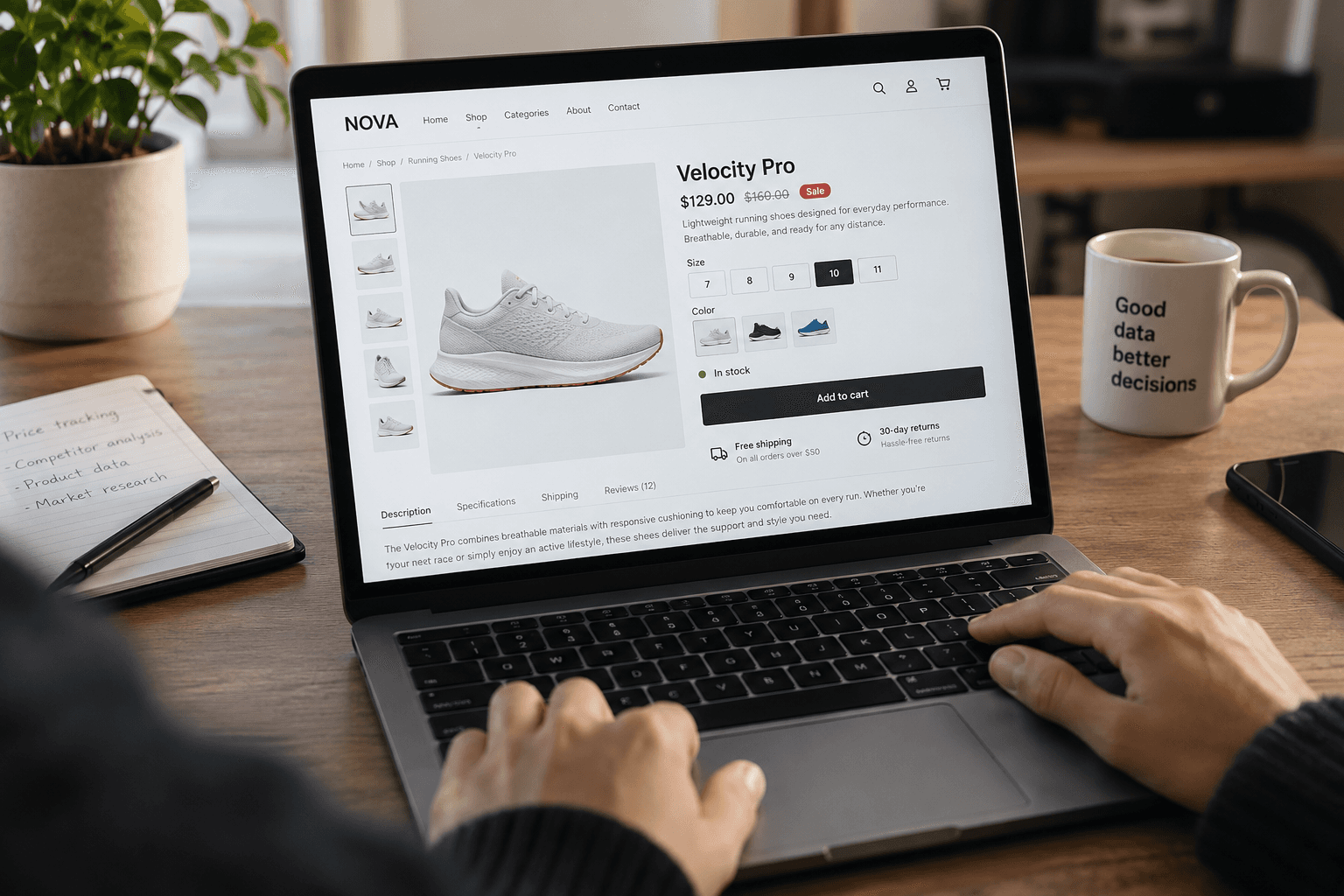
WooCommerce runs a large share of the world's online stores, from one-person shops to distributors with tens of thousands of SKUs. If you need to scrape WooCommerce products for price monitoring, catalog building, or competitor research, there are two very different places to get the data from.
The first is the database, through WooCommerce's public API. It's fast and tidy, and it's what most tutorials lead with. The second is the product page: the price, the stock message, the specification table, and the variation picker that a real shopper sees. For most business uses, the second one is the one that matters.
The API tells you what's stored in the database. The product page tells you what the customer sees. On a plain WooCommerce install the two are close. On a real store with pricing plugins, multi-currency, custom spec tabs, and a page builder theme, they can drift apart in ways that break pricing decisions.
This guide covers both, in order of importance. You'll learn how to confirm a store runs WooCommerce and what a WooCommerce product page actually contains. It then walks through extracting that data reliably, when the Store API is a useful shortcut and where it falls short, and how building your own WooCommerce scraper compares with a no-code tool.
Why Scraping WooCommerce Is Different from Shopify
If you've read our guide on how to scrape a Shopify store, you'll recognise some of the ideas. But the operating conditions are very different.
Shopify is one platform. WooCommerce is thousands of installations. Every Shopify store runs on the same infrastructure with the same endpoints. A WooCommerce store is a WordPress plugin running on whatever server, theme, and plugin stack the merchant chose. Two WooCommerce stores can look and behave completely differently.
For anyone building a WooCommerce product scraper, that has three consequences:
Plugins reshape the data. Dynamic pricing, multi-currency, wholesale pricing, product add-ons, brand plugins, and custom fields all change what a product "is" on a given store. Most of that shows up on the product page first, and sometimes only there.
Themes reshape the markup. Classic WooCommerce templates are consistent, but page builders such as Elementor or Divi rebuild product pages from scratch. Your extraction has to adapt to the page, not the other way round.
Access varies store by store. Some stores expose a public API; many restrict it with security plugins or hosting firewalls. Product pages, on the other hand, are always public, because the store needs shoppers to see them.
That last point is the practical argument for a page-first approach: it's the one data source every WooCommerce store is guaranteed to publish.
How to Tell If a Store Runs on WooCommerce
Before choosing a method, confirm the platform. Stores migrate more often than you'd expect, and a WordPress site is not necessarily a WooCommerce site.
Look for plugin assets. View the page source and search for /wp-content/plugins/woocommerce/. WooCommerce loads its scripts and stylesheets from that path, and themes rarely hide it completely.
Check the body classes. WooCommerce adds classes such as woocommerce and woocommerce-page to the <body> tag, and single-product on product pages.
Check the generator tag. Many stores output a <meta name="generator" content="WooCommerce X.X"> tag, which also tells you the version.
Watch the network tab. Requests to ?wc-ajax= endpoints (cart fragments, variation lookups) are a WooCommerce signature.
If you're building a list of WooCommerce stores in a niche rather than verifying one, technology-detection databases and industry directories are far more efficient than manual checks.
What's on a WooCommerce Product Page
A WooCommerce product page is richer than it looks. Before writing any extraction logic, it helps to know what each block contains and where it comes from.
The price block. On a discounted product, WooCommerce shows the regular price struck through and the sale price next to it, often with a "Sale!" badge. Many stores add a price suffix such as "incl. VAT" or "per m²". On variable products, the block shows a price range until an option is selected. This is the price the shopper actually sees, after plugins, currency switchers, and tax display settings have done their work.
The stock message. Depending on store settings, shoppers see "In stock," "Out of stock," "Available on backorder," or an exact count such as "Only 3 left in stock." Stores that display quantities publish useful inventory data right on the page.
Product meta. SKU, categories, and tags usually appear in a meta block under the add-to-cart button.
The variation form. For variable products, the size and colour dropdowns or swatches. Behind them sits the full variation data, covered in detail below.
The tabs. The Description tab carries the full product content. The Additional information tab holds the attributes table: weight, dimensions, material, compatibility, and any other attribute the merchant defined. The Reviews tab contains individual reviews and ratings.
Breadcrumbs. The breadcrumb trail gives you the product's position in the category tree, which is essential for assortment analysis.
The gallery. Main image, gallery images in display order, and often a separate image for each variation.
Plugin and theme additions. This is where WooCommerce stores differ most, and where the most valuable data often lives: brand names and logos, size charts, extra specification tabs, custom fields (for example, from Advanced Custom Fields), delivery estimates, tiered or quantity-based price tables, "frequently bought together" bundles, and trust badges. None of this is part of core WooCommerce, which is exactly why generic tools tend to miss it.
Method 1: Extracting Data from WooCommerce Product Pages
This is the approach that matches what shoppers and competitors actually see, and it works on every public WooCommerce store. It's built in five steps.
Step 1: Collect product URLs
You need a complete list of product pages before extracting anything. There are three reliable sources:
Sitemaps. WordPress generates XML sitemaps by default, and SEO plugins generate their own:
Product sitemaps list every published product, often with last-modified dates. That makes them useful for spotting new or updated products without re-crawling the whole catalog.
Category pages. WooCommerce category URLs typically follow /product-category/<slug>/, with pagination at /page/2/, /page/3/, and so on. Crawling categories is slower than reading a sitemap, but it preserves context: which products sit in which category, and in what order the store displays them.
The shop page. /shop/ lists the full catalog with pagination. It's useful as a cross-check when the sitemap looks incomplete.
For competitor monitoring, category crawling is often the better choice: you usually care about specific categories, not the entire store.
Step 2: Read structured data first
WooCommerce outputs JSON-LD Product markup on product pages by default. It's a machine-readable block with the name, SKU, description, images, price, currency, availability, and aggregate rating.
JSON-LD is a stable baseline, because it doesn't change when the theme is redesigned. But treat it as a starting point, not the final answer. SEO plugins sometimes replace or extend WooCommerce's markup, and on stores with dynamic pricing the structured data price may not match the price displayed to shoppers.
Step 3: Extract visible content from the page
Everything JSON-LD doesn't cover comes from the rendered HTML: the sale and regular price pair, price suffixes, the stock message, the attributes table, extra tabs, brand, breadcrumbs, and plugin-specific blocks.
On classic WooCommerce themes, these elements use consistent, well-known markup, so a single extraction template covers many stores. On page-builder themes, the same information sits in custom markup that needs per-store configuration.
The rule of thumb for prices: when the structured data and the visible price disagree, the visible price wins, because that's what the customer pays. A scraper that only reads structured data will quietly report the wrong price on exactly the stores where pricing is most active. Recording the price the shopper sees is the core principle of our price scraping service.
Step 4: Handle variations
For variable products, WooCommerce embeds the full variation list in a data-product_variations attribute on the add-to-cart form: prices, SKUs, stock status, and images for every combination. Parsing that attribute gives you one clean row per variation.
There's one important exception. When a product has more variations than a threshold (30 by default), WooCommerce stops embedding them. Instead, it looks up each variation via an AJAX request when the shopper selects options, and the attribute contains false.
This is where many WooCommerce web scraper scripts silently lose data. They collect the parent product, find no variations, and never report the gap. A reliable scraper detects the false value and either calls the variation lookup for each attribute combination or renders the page and walks through the options.
Step 5: Render the page when content depends on JavaScript
Some themes and plugins inject prices, stock messages, delivery estimates, or product add-ons with JavaScript after the page loads. If an HTTP-only request returns different content from what you see in a browser, those stores need rendered extraction.
Validate before you trust the data
A page-based WooCommerce crawler should check its own output. Useful checks: prices that differ from the structured data by more than rounding, variable products with zero variations, products whose category suddenly changes, and prices that shift by a factor of 10 or 100. These are the anomalies that turn into bad pricing decisions when nobody looks.
A Shortcut: The WooCommerce Store API (and What It Misses)
Most WooCommerce stores also expose a public JSON API, the Store API, which powers the block-based cart and checkout. It's a genuinely useful shortcut for a quick look at a catalog, and it's worth knowing how it works and where it stops.
How it works
The products endpoint returns catalog data as JSON, with no authentication:
You can request up to 100 products per page. The X-WP-Total and X-WP-TotalPages response headers tell you the size of the catalog. Filters such as category, on_sale, and stock_status are supported. Variable products list their variation IDs, and each variation can be requested separately.
Prices come back as strings in the currency's minor unit, alongside a currency_minor_unit field:
json
Here "2499" means €24.99. Forgetting to convert is the classic Store API mistake: it makes a competitor look a hundred times more expensive.
Where it falls short
For a quick snapshot of one store, the Store API is hard to beat. For ongoing monitoring and catalog building, its gaps matter:
It's often switched off. Security plugins and hosting firewalls frequently block
/wp-json/for anonymous visitors. Your method then fails on exactly the stores that care most about protecting their data.It shows the database, not the storefront. Dynamic pricing, currency-switching, and wholesale plugins don't always apply their logic to API responses the same way they do on the page. The API price and the price a shopper sees can differ.
It misses plugin content. Extra specification tabs, custom fields, brand plugins, size charts, delivery estimates, and tiered price tables are usually not in the Store API response.
It's WooCommerce-only. A competitor set almost never sits on one platform. If you track 30 stores across WooCommerce, Shopify, Magento, and custom builds, an API-specific method covers only part of the job. Product pages exist on every platform, which is why e-commerce web scraping built around product pages covers your whole competitor set.
You may also see the /wp-json/wc/v3/products endpoint in tutorials. That's the WooCommerce REST API, which requires admin-generated keys. It's the right tool for syncing your own store, not for collecting data from others.
Method 2: Building Your Own WooCommerce Scraper
A basic page scraper for a single classic-theme store is a weekend project: read the sitemap, fetch pages, parse JSON-LD and a few selectors, write CSV. Keeping it accurate across many stores is the real work:
Per-store templates. Page-builder themes need their own extraction rules, and those rules break whenever the merchant redesigns.
Variation handling. You need both the embedded variation data and the AJAX fallback for large variable products.
Rendering infrastructure. Headless browsers for JavaScript-dependent stores, which are slower and more expensive to run.
Stale caches. Caching plugins and CDNs can serve pages that are hours old, so you need a way to detect outdated prices.
Normalisation. "Colour," "Color," and "pa_farba" are the same attribute. Prices need consistent currency and tax treatment. Categories need mapping across stores.
Rate control and monitoring. Small WooCommerce stores on shared hosting are fragile. You also need alerts when a source quietly starts returning empty or broken data.
None of this is exotic, but all of it is ongoing. We've covered how to weigh that cost in our build vs buy analysis: build when data collection is your core product, buy when the data feeds decisions elsewhere in the business.
Method 3: A No-Code WooCommerce Product Scraper
A no-code product scraper for WooCommerce does the page-level work for you. With ShopScraping's no-code product scraper, you submit a store URL, a category page, or a list of product URLs, and choose the fields you need. You get back structured data built from the product pages themselves: the prices, stock messages, attributes, and specifications that shoppers actually see.
Each new source is configured for its theme and plugins and checked manually before extraction starts. That's how page-builder layouts, custom spec tabs, and large variable products are handled correctly from the first run. Variations are expanded into rows, prices are normalised, and category paths are preserved.
Data is delivered as CSV, Excel, or JSON, as a one-off extraction or on a daily, weekly, or monthly schedule. Because the method is based on product pages, not a platform API, the same workflow covers your WooCommerce competitors and every other store in your set. If you're new to the approach, see our guide on how to scrape product data without coding.
Comparing the Approaches
Store API by hand | Custom page scraper | No-code WooCommerce scraper | ||
|---|---|---|---|---|
Matches the price the shopper sees | Not always | Yes | Yes | |
Spec tabs, custom fields, plugin data | Rarely | If you build it per store | Yes | |
Works when the REST API is disabled | No | Yes | Yes | |
Variations above the AJAX threshold | Yes, one request each | Only with extra handling | Yes | |
Same method for non-WooCommerce stores | No | Yes, with new templates | Yes | |
Scheduled refresh | No | You build and host it | Configurable | |
Ongoing cost | Your time | Engineering, rendering, proxies | Subscription | |
Best for | A quick look at one store | Teams whose product is data | Pricing, catalog and ops teams |
Want to see the output first? Run a demo before you sign up.
What Teams Do with WooCommerce Product Data
Competitor price monitoring. Many independent retailers and niche specialists run on WooCommerce, which makes it a common platform in competitor price monitoring. Page-level data shows the struck-through regular price next to the sale price, so you see discount depth and frequency, not just today's number. Because it's all public, you can monitor competitor prices without integrations or cooperation from the store.
Stock and restock tracking. Stock messages, backorder labels, and published quantities, collected on a schedule, reveal sell-through speed and supply problems at competitors. See our guide on how to track product stock and availability across competitor stores.
Supplier catalog collection. Many wholesalers and distributors run WooCommerce stores that publish full product content but offer no usable feed. The product pages hold the descriptions, attribute tables, and technical specifications you need to build your own catalog. This is one of the most common scenarios behind our product data extraction service.
Assortment and gap analysis. Category crawls and breadcrumbs show how a competitor structures a category, how deep each one goes, and which products they carry that you don't.
Store migration. When moving off an old WooCommerce installation, reading the live product pages captures variation structure, category depth, and plugin content that admin exports often flatten or drop.
Exporting Your Own WooCommerce Store (and Importing Elsewhere)
If the store is yours, start with the built-in exporter: in WordPress admin, go to Products → All Products → Export to export WooCommerce products to CSV. For programmatic access, generate REST API keys and use the authenticated /wc/v3/ endpoints.
The native export has limits. Plugin fields, custom tabs, and complex variations don't always survive the round trip. When you're replatforming, for example on a WordPress to Shopify migration, the destination's import format matters as much as the source data. Our WooCommerce catalog import service builds import-ready files from any website, and the Shopify import service does the same for stores moving to Shopify.
Is It Legal to Scrape WooCommerce Stores?
The platform doesn't change the legal picture. Collecting publicly available product information such as prices, availability, and specifications is generally treated differently from accessing data behind a login or collecting personal data. Terms of service, copyright in descriptions and photography, and data protection rules still apply, and they vary by jurisdiction.
Two practical rules cover most situations. Collect only public product data, and don't republish copyrighted descriptions and images as your own without permission. For a detailed breakdown, read Is Web Scraping Legal? A 2026 Guide for E-commerce.
Frequently Asked Questions
Can I scrape any WooCommerce store?
Any store with publicly visible product pages, yes. Product pages are the one source every store publishes, even when its API is disabled. Password-protected stores and prices visible only to logged-in wholesale customers are out of scope.
Why does the Store API price differ from the product page?
Because the price on the page can be modified after it leaves the database. Dynamic pricing rules, currency switchers, wholesale plugins, and tax display settings can all change what the shopper sees, and they don't always affect API responses the same way. For pricing decisions, use the price shown on the product page.
Do I need API keys to scrape WooCommerce products?
No. Product pages are public, and the Store API also works without authentication where it's enabled. Keys are only needed for the WooCommerce REST API (/wc/v3/), which is meant for managing your own store.
Can I see a competitor's stock levels?
Often, yes. Many stores show exact quantities on the product page ("Only 3 left in stock"). Others show only in-stock, out-of-stock, or backorder status. Tracking how these change over time is the practical way to measure sell-through.
How do I scrape WooCommerce variations?
Read the data-product_variations attribute on the product form, which contains every variation's price, SKU, stock, and image. For products with more than 30 variations, WooCommerce loads them via AJAX instead, so you need to request each combination or render the page and step through the options.
What is the best WooCommerce scraper?
It depends on the job. For a quick look at one store, the Store API in a browser is enough. For monitoring prices and stock across many stores, you need a WooCommerce scraper that reads product pages, handles large variable products and plugin content, and runs on a schedule. You can build that in-house or use a managed tool.
Is a WordPress product scraper the same as a WooCommerce scraper?
Not quite. Many "WP scraper" plugins are designed to import content into WordPress. A WooCommerce scraper extracts product data from WooCommerce stores. If you need both, for example scraping a supplier and loading the products into your own store, you need an extraction step and an import-ready file format.
Start Scraping WooCommerce Stores
WooCommerce gives you several routes to product data, but only one of them always matches what your customers and competitors see: the product page. The API is a handy shortcut. The page is where the real price, the real stock message, and the full specifications live, across WooCommerce and every other platform in your competitor set.
Start scraping WooCommerce stores with ShopScraping: paste a store or category URL, choose your fields, and get clean, structured product data straight from the pages shoppers see.


